Connection to an Openstack VM
SSH connection
Once you have created your VM, it is reachable through the allo-psmn gateway, like any other compute node of the PSMN clusters (see documentation)
When you are connected to allo-psmn, you have to do ssh $LOGIN@172.16.43.XX (replace XX by the last digits of the floating IP address of your VM).
Replace $LOGIN by the following:
Image |
Login |
|---|---|
debian13-base |
debian |
ubuntu24-base |
ubuntu |
ubuntu24-desktop-base |
ubuntu |
debian13-desktop-base |
debian |
rocky9-base |
rocky |
debian13-psmn |
your PSMN login |
debian13-desktop-psmn |
your PSMN login |
ubuntu24-psmn |
your PSMN login |
ubuntu24-desktop-psmn |
your PSMN login |
ubuntu24-desktop-imaging-psmn |
your PSMN login |
ubuntu24-desktop-matlab-psmn |
your PSMN login |
rocky9-psmn |
your PSMN login |
Whichever image you choose, you have administrator rights (sudo).
X2GO connexion
If you choose a desktop image, you can use X2GO client to connect to it (see documentation)
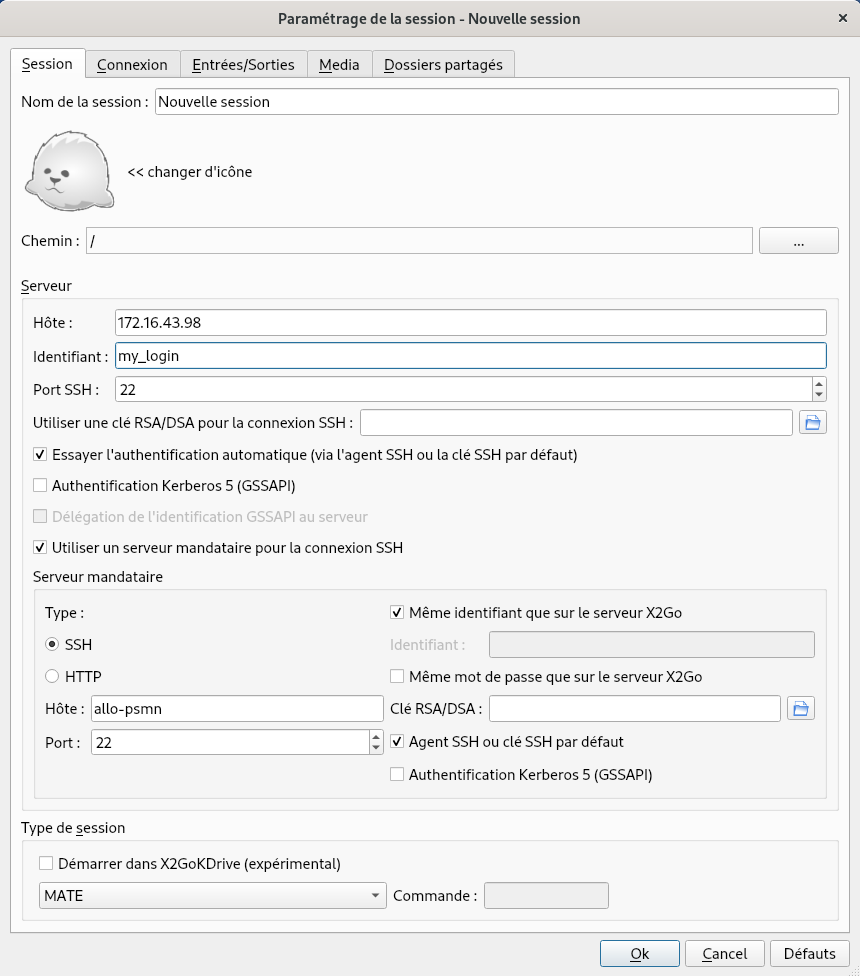
Configure a new connection with the following items:
Important
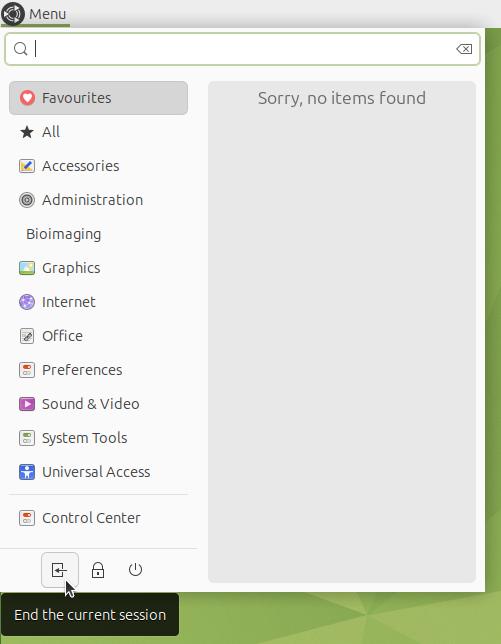
On desktop images the upper-right logout button is inactive. To log out, you must open the main menu (upper-left) and click the logout icon
Tigervnc (alternative to X2Go)
In case you encounter issues with X2Go you can use Tigervnc.
Install TIgerVNC client
On Debian/Ubuntu:
sudo apt install tigervnc-viewerFor others Linux distros, Mac or Windows see https://sourceforge.net/projects/tigervnc/files/stable/1.16.0/
Create SSH tunnel
You need to establish a SSH tunnel in order to use Tigervnc. Use this command:
ssh -L 59000:172.16.43.XX:5901 $LOGIN@allo-psmn.psmn.ens-lyon.fr
(replace XX by the last digits of your floating IP and $LOGIN by your PSMN login).
Don’t exit the terminal.
Launch VNC server
Open another terminal
Connect to your VM with SSH
Launch
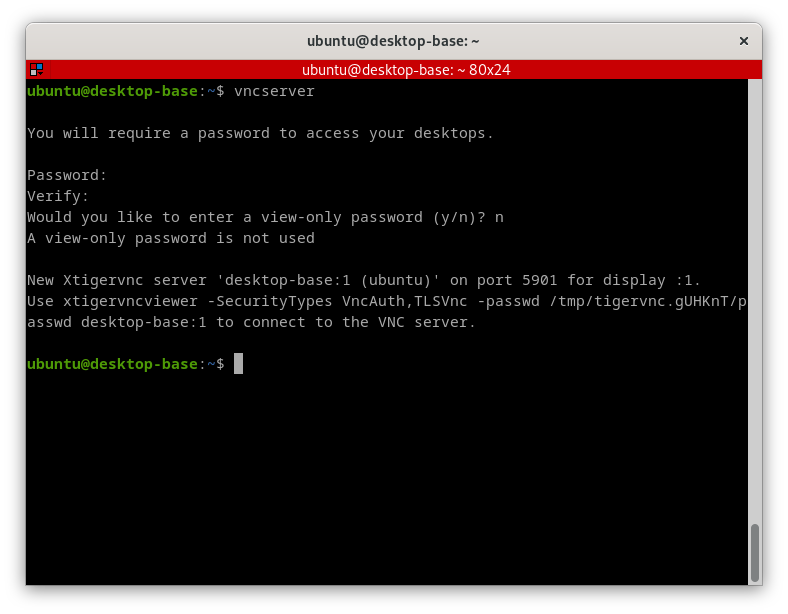
vncserver. You will be asked to set a password. This password will be used to connect to the VM with VNC. You will be asked to enter a view-only password, answer no.
Hint
This password will remain the same for all your *-psmn VMs
Connect to your VM
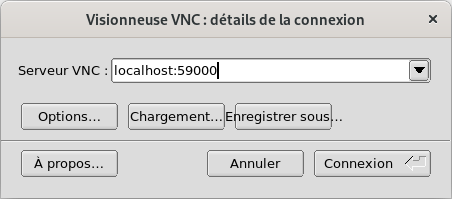
Launch your VNC client and enter
localhost:59000Enter your the password you defined earlier
Important
On desktop images the upper-right logout button is inactive. To log out, you must open the main menu (upper-left) and click the logout icon
Connect to Jupyter VMs
Once your VM is ready, open a terminal and type
ssh -L 8000:172.16.43.XX:8000 $LOGIN@allo-psmn.psmn.ens-lyon.fr
(replace XX by the last digits of your floating IP and $LOGIN by your PSMN login).
Don’t exit the terminal.
Then open your web browser and go to https://localhost:8000